By cuterose
Common Smartphone Battery Problems and Fixes
Smartphone batteries keep everything running, so problems with them quickly become annoying. Many users notice their phone dying before the day ends, heating up in their pocket, or refusing to charge properly. These issues can come from settings, apps, habits, or simple battery wear. You can often fix them without visiting a repair shop. By understanding what causes battery drain, overheating, and charging faults, you can take simple steps to restore performance. This guide walks through the most common battery problems and gives clear, practical fixes you can apply right away for better battery health.
Most Common Smartphone Battery Problems Users Face
Fast Battery Drain During Daily Use
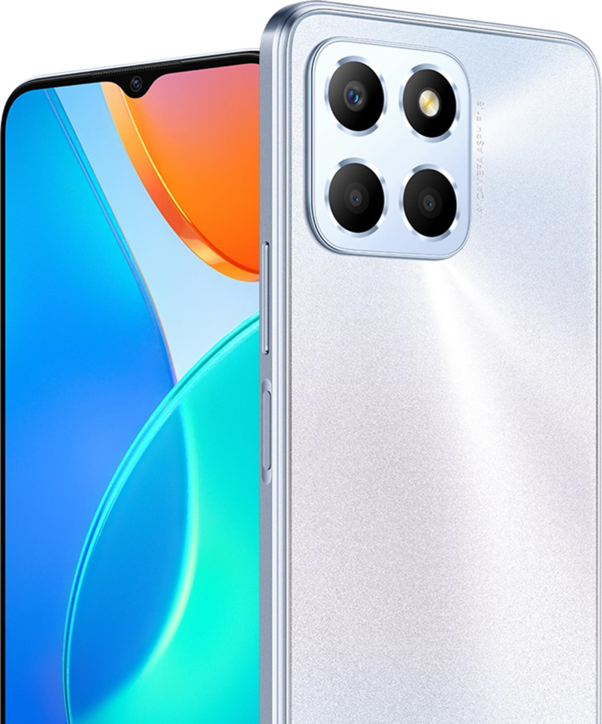
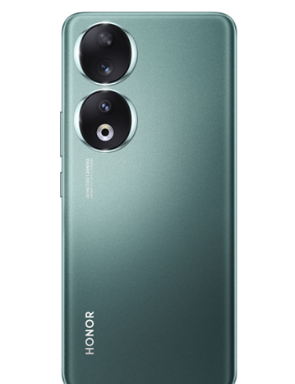
Fast battery drain on the HONOR X9 usually comes from power-hungry apps, constant background activity, or poor settings. Social media, games, and streaming apps often refresh and sync non-stop. High screen brightness, live wallpapers, and always-on GPS also burn through power. A weak signal can force your HONOR X9 phone to keep searching for a network, which drains the battery faster. Sometimes a recent update or a misbehaving app causes sudden drops. Over time, battery capacity naturally decreases, so older devices like the HONOR X9 may lose charge quicker. Noticing when and how the battery drains helps you pinpoint the main cause.
Phone Overheating While Charging or Gaming
Overheating happens when the phone works harder than it can safely handle or when heat cannot escape. Fast charging, cheap chargers, or charging while gaming can raise the temperature quickly. Heavy 3D games, long video recording, and extended streaming sessions push the processor and battery hard. Using the phone under direct sunlight or in a hot car traps heat. A thick case can also prevent heat from dissipating. While some warmth is normal, constant or extreme heat can damage the battery, slow performance, and make the device uncomfortable to hold.
Practical Fixes for Common Battery Issues
Optimize Settings: Brightness, Apps, and Battery Saver Mode
Start by lowering screen brightness and disabling auto-brightness if it keeps the display too bright. Shorten screen timeout so the display turns off quickly when not in use. Turn off Bluetooth, GPS, and Wi‑Fi when you do not need them. Limit background activity by disabling auto-sync for non-critical apps and restricting background battery usage in settings. Use battery saver mode to reduce performance and cut unnecessary features while preserving basic functions. Replace live wallpapers with static ones. These changes reduce strain on the battery without sacrificing core phone features.
Improve Charging Habits and Use Reliable Accessories
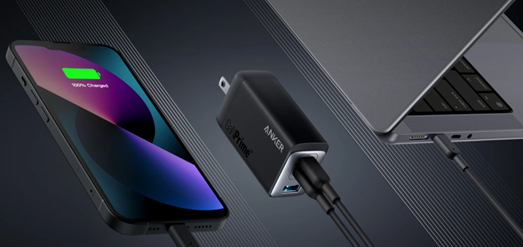
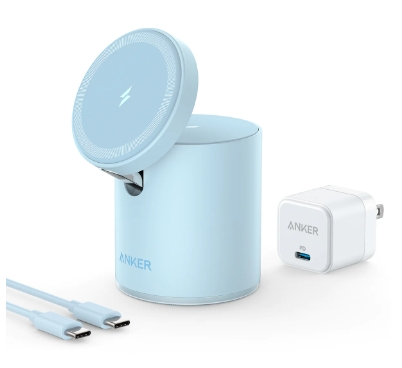
Use certified chargers and quality cables that match your phone’s power requirements. Avoid very cheap, unbranded accessories that may deliver unstable current. Keep the phone on a hard surface while charging, not under pillows or blankets. Unplug once it reaches 100% rather than leaving it on the charger all night. Try to keep charge levels between roughly 20% and 80% for better long-term health. Avoid using heavy apps or games while plugged in. If wireless charging feels too hot, switch to wired and check for proper alignment on the pad.
Advanced Troubleshooting and Long-Term Solutions
Check Battery Usage Stats and Identify Problem Apps
Open the battery section in settings and review the usage chart. Look for apps that use a large percentage of power even with little screen time. Social media, messaging, and email apps can misbehave after updates and drain battery in the background. Disable or limit background activity for suspicious apps. Clear cache and, if needed, reinstall them. Consider lighter alternatives for heavy apps, like using mobile websites instead of full apps. Turn off unnecessary push notifications and auto-play videos. Regularly reviewing battery stats helps catch new problems early and keeps drain under control.
Update Software and Reset System When Needed
Install the latest system updates and security patches because manufacturers often fix battery and performance issues in new versions. Update all apps through the app store to remove known bugs that cause drain or overheating. If problems started after an update, try wiping cache partitions on Android. As a last resort, back up your data and perform a factory reset to clear deep software conflicts. If the battery still behaves badly after a reset, the cell itself may be worn out and require professional replacement.
Conclusion
Smartphone battery issues usually come from a mix of settings, apps, habits, and natural battery wear. By controlling screen brightness, limiting background activity, and using proper chargers, most users can cut drain and heat significantly. Checking battery stats and keeping software updated helps catch problem apps before they cause serious trouble. When simple fixes do not work, a reset or battery replacement may be the best path. With consistent care and smarter usage, your phone can stay powered longer, run cooler, and remain reliable each day.
Related Articles

Create Labels Easily Using Excel-No More Mistakes!
8 Tips To Check Phone Features Before Buying
How to Connect a Laptop to a TV Screen: Full Guide
Smartphone Maintenance: Essential Tips To Keep Your Device In Prime Condition