
By cuterose
Smartphone Battery Health: What You Need to Know
Smartphone battery health decides how long your device stays fast, reliable, and safe each day. Most modern phones use lithium‑ion batteries, which slowly lose capacity over time. How you charge, store, and use your phone can speed up or slow down this wear. Many people ignore battery care until the phone starts dying at 20% or shuts off without warning. By understanding what affects battery health and changing a few habits, you can keep your phone running smoothly for years and avoid early upgrades or costly repairs.
Key Factors That Affect Smartphone Battery Health
Charging Habits: Why 20%–80% Is the Ideal Range
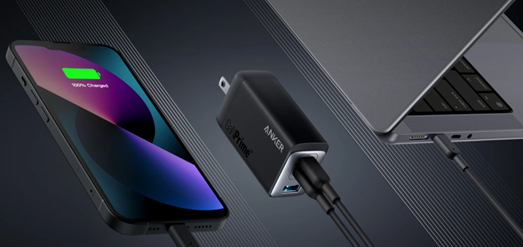
Lithium‑ion batteries handle partial charges better than full cycles from 0% to 100%. Most experts and manufacturers suggest keeping charge levels between about 20% and 80% for daily use. Deep discharges strain the battery, while sitting at 100% for long periods also accelerates wear. Many phones now use smart charging to slow down the last part of the charge or delay 100% until you wake up. When possible, unplug after reaching around 80% and avoid letting the battery hit 0% unless absolutely necessary.
Heat, Fast Charging, and Environmental Impact
Heat is one of the main enemies of battery health, especially for devices like the HONOR X8a smartphone. Fast charging and heavy gaming generate more heat, especially when used together. Long sessions on a hot day or charging on a soft surface can trap warmth and damage battery cells over time. Phone makers design fast chargers with safety limits, but frequent high-speed charging still adds stress. To protect the battery, keep the phone out of direct sun, remove thick cases while charging if it gets hot, and avoid leaving it in hot cars.
App Usage, Background Processes, and Power Drain
Apps that constantly sync data, track location, or refresh in the background drain your battery and make it cycle more often. Social media, navigation, and streaming apps are common culprits. Every full charge cycle adds a bit of wear, so reducing unnecessary drain slows long‑term battery aging. Check battery usage stats in your settings to find apps that consume the most power. Disable background refresh for non‑essential apps, limit location access, and close or uninstall tools you rarely use but that keep running quietly.
Practical Tips to Maintain and Improve Battery Health
Smart Charging Habits to Extend Battery Lifespan
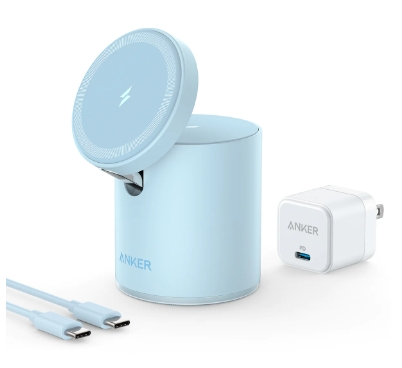
You can improve battery lifespan by charging in smaller, gentler increments. Plug in briefly during the day instead of waiting for the battery to hit very low levels. Avoid overnight charging without optimization features enabled. Use quality chargers and cables from reputable brands or the phone manufacturer. When storing a phone for weeks, leave the battery around 40%–60%, not full or empty. If your phone supports it, enable optimized charging or battery protection modes that limit time spent at 100% and lower charging speeds.
Use Built-In Battery Optimization Features and Settings
Most smartphones now include advanced battery management tools. On Android, Battery Saver, Adaptive Battery, and per‑app restrictions help control power‑hungry apps. Many phones show a “Battery Health” section with maximum capacity and performance status. Use these tools to automatically limit background activity, slow performance slightly when needed, and prevent unnecessary full‑speed charging. Regularly review battery statistics and adjust permissions so only important apps run in the background.
Reduce Power Consumption with Daily Usage Adjustments
Small daily changes reduce power use and protect battery health. Lower screen brightness or use auto‑brightness. Shorten screen timeout so the display turns off quickly when idle. Switch to dark mode on OLED screens, which can save energy. Turn off Bluetooth, Wi‑Fi, or mobile data if you do not need them for a while. Use Wi‑Fi instead of mobile data when possible, as cellular connections often drain more power. Limit live wallpapers and excessive widgets that constantly refresh content on your home screen.
Signs Your Battery Health Is Declining and What to Do
Common Warning Signs Like Fast Drain and Overheating
A worn battery usually shows clear signs. The phone may drop from high percentages to low very quickly or shut down suddenly even with charge left. You might notice the device feels hot during light tasks or charging. Charge times may increase, and you may need to plug in more often than when the phone was new. System performance can slow if the phone throttles to prevent crashes. Check your battery health settings if available, and back up important data in case the battery fails completely.
When to Replace Your Smartphone Battery
Most phones start to feel weaker when battery health drops below about 80% of original capacity. If you cannot get through half a day of normal use, even with battery‑saving features, replacement makes sense. Look for official service centers or trusted repair shops that use quality parts. Replacing the battery can extend your phone’s life by another year or more and is usually cheaper than buying a new device. If the battery swells, cracks the case, or smells odd, stop using the phone and replace it immediately.

Conclusion
Battery health does not depend on luck; it reflects daily habits and conditions. By avoiding extreme charge levels, managing heat, and reducing background drain, you can slow battery aging and keep your smartphone reliable for longer. Use built‑in tools to monitor health and optimize charging, then adjust settings to cut unnecessary power use. Watch for warning signs such as fast drain, overheating, or sudden shutdowns. When performance drops too far, a professional battery replacement restores usability and helps you delay the cost of a full upgrade.
Related Articles

Create Labels Easily Using Excel-No More Mistakes!
8 Tips To Check Phone Features Before Buying
How to Connect a Laptop to a TV Screen: Full Guide
Smartphone Maintenance: Essential Tips To Keep Your Device In Prime Condition